Gemini / 4 min
Gemini image editing prompts: make local photo edits without changing what should stay
A practical Gemini image editing prompt guide for background changes, object removal, text, and local edits while preserving the subject and composition.
Watch on YouTube
BananaNL in 1 minute
A quick look at how selected prompts move into NotebookLM and AI Chat input fields.
Watch on YouTubeA vague edit prompt can change the parts you wanted to keep
People searching for Gemini image editing prompts usually do not want a completely new picture. They want to change the background, remove one object, add a short label, or repair one local area while keeping the subject and composition intact.
Google Gemini Help describes Nano Banana 2 as supporting edits to generated images, uploaded images, and new images based on multiple uploads. It also highlights local edits, character consistency, and improved text rendering. The same Help page notes age limits for image editing and reminds users to respect copyright, privacy, and prohibited-use policies.
Google Developers Blog and the Gemini API documentation both point toward descriptive prompts, text-plus-image editing, and iterative refinement. A useful edit prompt should therefore separate what must stay, where the edit happens, what should change, and what to adjust in the next turn.
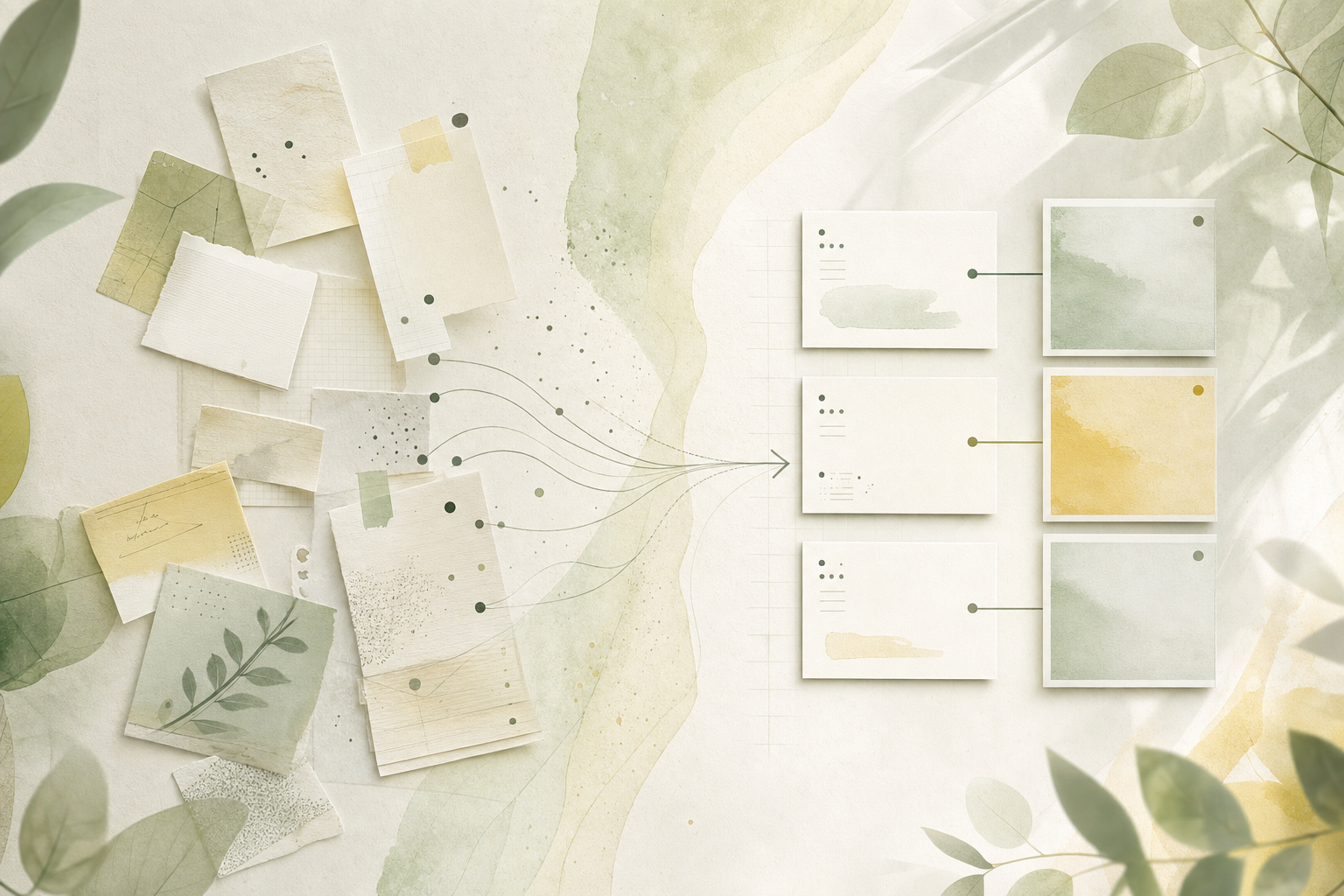
Five details to define before editing an image
- Name what should stay. Preserve the face, outfit, product shape, composition, lighting direction, or camera angle before asking for a change.
- Point to the edit area. Say background, lower-right cable, object on the table, top margin, or another visible location.
- Limit the change to one main operation. Background replacement, object removal, color adjustment, and text insertion are easier to review one at a time.
- Describe the finish. Add natural light, product-photo look, social post crop, calm tone, or another use-case cue.
- Add short guardrails. Ask Gemini not to change identity, add extra text, insert real logos, or imitate protected characters.
The Gemini image-editing pattern
Where this prompt pattern fits
| Background change | Keep the person or product while changing the room, outdoor setting, season, or mood. |
|---|---|
| Object removal | Remove a cable, reflection, small stain, or distracting item from a specific area. |
| Product and social visuals | Keep the original product shape and color while improving whitespace, lighting, or a short headline. |
| Follow-up edits | Avoid restarting from scratch when only one part of the generated image needs another adjustment. |
Gemini image editing prompts to try
Change only the background
Edit the attached image. Keep the person, facial expression, outfit, pose, and camera framing unchanged. Change only the background to a bright cafe with natural light. Make the outline and shadows look natural. Do not add extra text or logos.
It separates the preserved subject from the changed area, which reduces unwanted identity or composition drift.
Remove one distracting object
Remove only the cable in the lower-right corner of the image. Keep the desk texture, lighting, and all other objects in the same positions. Do not add any new objects or text where the cable was.
A clear location and preserve list make a local edit easier to evaluate.
Add one short headline
Turn this product photo into a square social announcement image. Keep the product shape and color unchanged. Add only the short headline “New arrival” in the top whitespace, large and easy to read. Do not add small text, long copy, or real logos.
Image text works better when the wording is short and the placement is explicit.
Keep reusable edit prompts close to Gemini
Gemini image editing often repeats the same patterns: change only the background, remove only one object, add only one short line of text, or preserve the subject while changing the mood. Saving these patterns is faster than searching for wording every session.
BananaNL inserts selected prompts into Gemini, ChatGPT, and other AI Chat input fields. It does not submit automatically, so you can review the image rights, subject treatment, and preserve list before sending. NotebookLM use starts free, while AI Chat integrations such as Gemini are paid features.
FAQ
What should a Gemini image editing prompt start with?
Start with what should stay unchanged: the face, product shape, composition, lighting direction, or any other important visual detail. Then specify the edit area and change.
Can Gemini edit uploaded photos?
Google Help says Gemini can edit generated images and uploaded images, and can create a new image based on multiple uploads. Age limits, copyright, privacy, and prohibited-use policies still apply.
What should I do if Gemini changes too much?
Split the work into smaller edits. Ask for only the background, only one object, or only one short headline, and add a preserve instruction when you send the follow-up prompt.
If searching for prompts is the hard part, use BananaNL
Prompts become useful when they are close to the input field. Use BananaNL to carry them there, then adjust before sending.