NotebookLM / 4 min
Design prompts that make NotebookLM more useful
Learn a short prompt framework for turning NotebookLM sources into clearer infographics and reusing the same thinking in Gemini and ChatGPT.
Watch on YouTube
BananaNL in 1 minute
A quick look at how selected prompts move into NotebookLM and AI Chat input fields.
Watch on YouTubeDo not leave the visual direction until the end
People searching for NotebookLM prompts usually want materials that are easier to understand. The problem is not only missing information. Often, the AI has not been told what the result should look like.
A prompt is not just a request. It is a design note that gives the model judgment criteria: reader, purpose, spacing, color count, hierarchy, and visual tone.
Learning prompts matters, but searching and pasting them every time is friction. Reusable prompts should be close to the input field.
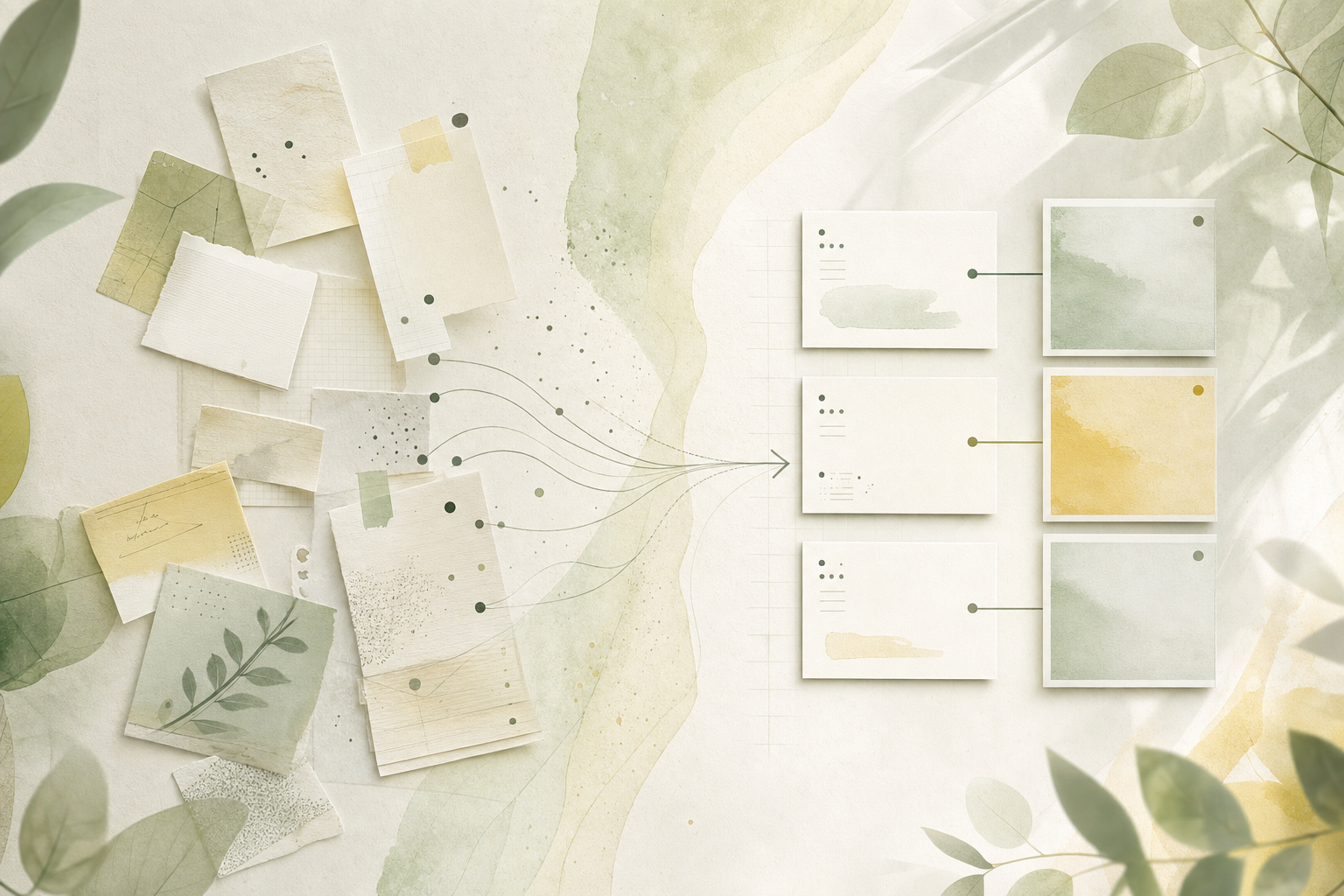
What to decide first in NotebookLM
- Decide who will read it. Internal notes, sales materials, and study notes need different levels of detail.
- Name the visual direction first, such as Minimal, Flat illustration, or Line Art.
- Specify spacing, color count, icon density, and short headings, not only the summary.
- After generation, check eye flow before editing word count. The main number or conclusion should be visible first.
What a prompt should decide
Where each AI fits
| NotebookLM | Best for organizing source material into diagrams or slides. |
|---|---|
| ChatGPT | Best for outlines, rewrites, and image prompt drafting. |
| Gemini | Best when image or document context should change the visual direction. |
| Grok | Best for turning research notes into quick comparisons and angles. |
Prompts to try
Turn source material into one clear infographic
Turn this material into a one-page infographic that a first-time reader can follow. Use short headings, generous spacing, no more than two colors, the conclusion first, three reasons below it, and the next action at the end.
It gives the model reader, structure, and visual order at the same time.
Make an explanation softer and easier
Explain this for beginners as a visual diagram. Use flat illustration, rounded people icons, a gentle color palette, and split the process into three to five steps.
It specifies both visual tone and learner-friendly structure.
But copying prompts every time is work
Learning prompts is useful. Searching for one, comparing wording, copying it, and pasting it into an AI input field every time is not.
BananaNL is a Chrome extension that inserts selected prompts into NotebookLM and AI Chat tools like Gemini and ChatGPT. It does not auto-send, so you can review the prompt first. NotebookLM use starts free.

FAQ
What should I write first?
Start with who should understand what, then add visual details such as spacing, colors, icons, and heading length.
Can I use this without design vocabulary?
Yes. Even short directions like Minimal, Flat illustration, or Line Art can change the result.
Does BananaNL press the generate button?
No. BananaNL only inserts the selected prompt into the input field. You decide whether to generate.
If searching for prompts is the hard part, use BananaNL
Prompts become useful when they are close to the input field. Use BananaNL to carry them there, then adjust before sending.